I Built 14 Accessible Next.js Apps with Claude
There is a story going around developer Twitter that AI code generators can't produce accessible interfaces. The story is wrong. AI can produce excellent accessible code. The catch is that AI does not know when it has produced inaccessible code, and most teams using AI do not know what to verify.
I built 14 production Next.js applications with Claude Code over the last six months. Every single one passes WCAG 2.1 Level AA. CRM dashboards, HR management apps, ecommerce storefronts, social media schedulers, AI ops dashboards, and seven more — all accessible enough to clear procurement reviews at Fortune 500 buyers.
This is not because Claude Code is magic. It's because I built a workflow that catches the mistakes Claude makes the same way it catches the mistakes I make. This post is that workflow. If you are shipping AI-generated React apps and you care about accessibility, copy it.
The kits, for context
Before the workflow, the receipts. These are the apps I shipped:
- SaaS Starter Kit — auth, dashboard shell, settings
- CRM Dashboard Kit — 42 screens, sales pipeline
- HR Dashboard Kit — 48 screens, leave management, performance reviews
- Ecommerce Kit — 40 screens, storefront and admin
- Blog CMS Kit — 27 screens, Ghost-style admin
- Kanban PM Kit — 45 screens, project management
- Social Media Dashboard Kit — 40+ screens
- Inventory Management Kit — 32 screens
- Finance Dashboard Kit — 9 screens, personal finance
- Sales Dashboard Kit — 9 screens, pipeline and forecasts
- NeuralDesk AI Ops Dashboard — 13 screens, model management
- AI Chat UI Kit — 114 chat components
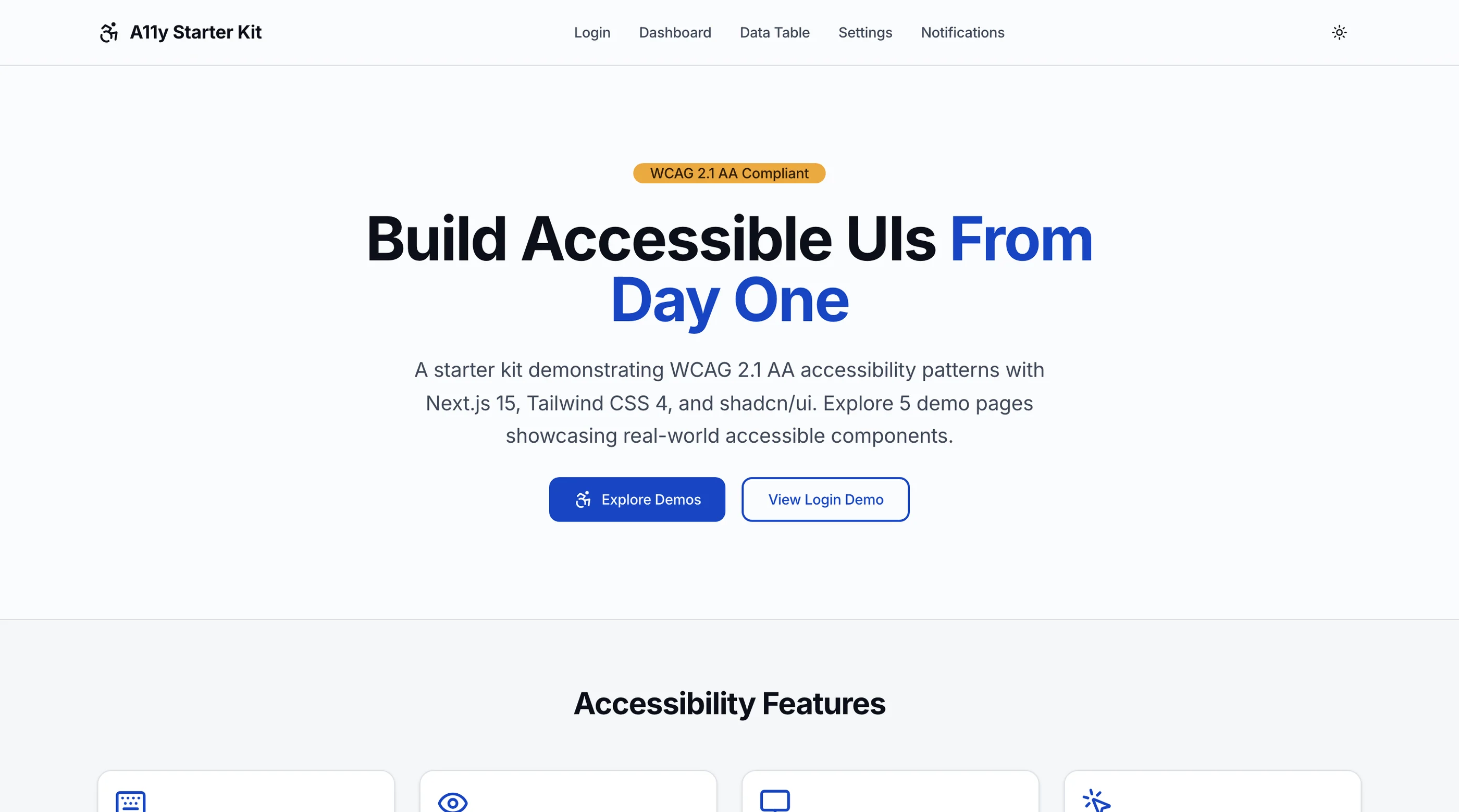
- A11y Starter Kit — free, source on GitHub, 6 reference screens
- AI Feedback Assistant — live demo combining the SaaS Starter and AI UX kits
Total: roughly 350 unique screens. Every kit is built with Next.js 16, Tailwind CSS 4, and shadcn/ui. Every kit passes axe-core with zero critical or serious violations. Every kit was built primarily with Claude Code.
The myth I want to kill
Here is the claim I keep seeing on Twitter and HackerNews:
"AI code generators can't produce accessible code because LLMs hallucinate ARIA attributes and don't understand semantic HTML."
This is half right. LLMs absolutely do hallucinate ARIA attributes. Claude has confidently generated role="container" (not a real role) and aria-pressed="yes" (should be "true") in front of me. I have also seen it produce buttons as divs, forms without labels, and color contrast that fails at 2.1:1.
What's wrong with the claim is the conclusion. AI generates broken code constantly. So do humans. The difference is that experienced humans review their own work against a checklist before shipping, and they have tools that catch the mistakes they miss. Most teams using AI do neither.
The fix is not "don't use AI." The fix is "use AI plus the same review discipline you would apply to a junior engineer."
The workflow
Here is what I actually do, in order, every time I build a new kit.
Step 1: Start with a system prompt that knows accessibility
This is the most important step and the one most teams skip. Claude Code (and any LLM) follows the priorities you set in the system prompt. If you don't tell it accessibility matters, it will optimize for whatever your other instructions emphasize, usually visual polish or speed.
I include this block in every project's CLAUDE.md:
# Accessibility requirements (NON-NEGOTIABLE)

Every component you write must pass WCAG 2.1 AA. Specifically:

1. Use semantic HTML before reaching for ARIA. <button> not <div onclick>.
   <nav> not <div role="navigation">. <main> not <div id="main">.

2. Every interactive element must work with keyboard alone. Tab to focus,
   Enter/Space to activate, Esc to close. Test by mentally walking through
   the tab order.

3. Every form input must have an associated <label>. Placeholders are
   not labels.

4. Color contrast: 4.5:1 for normal text, 3:1 for large text and UI
   components. Use the design tokens from globals.css; do not invent
   new colors.

5. Focus indicators must be visible against every background the
   component can sit on. Ring-2 with offset, never ring-1 with opacity.

6. Status changes must be announced to screen readers via aria-live
   or role="status". Toasts use sonner with role="status".

7. Never use color alone to convey meaning. Always pair color with
   icon or text.

8. Modals trap focus, return focus to trigger on close, close on Esc.
   Use shadcn Dialog (built on Radix), not custom implementations.

9. Touch targets are at least 44x44px on mobile. Use min-h-11 on tap
   targets that look smaller.

10. Test the following before marking anything complete:
    - Tab through every interactive element
    - Resize browser to 320px wide (no horizontal scroll)
    - Toggle dark mode (contrast still passes)
    - Run the page through axe DevTools (zero criticals)
This is in every project before Claude writes the first line of code. It's not perfect — Claude still makes mistakes — but the mistakes are rarer and easier to catch when the model knows what it's optimizing for.
Step 2: Use shadcn/ui as the base, not custom components
shadcn/ui wraps Radix UI primitives, which are the gold standard for accessible React components. Radix handles focus management, keyboard interactions, ARIA attributes, and screen reader announcements correctly out of the box for almost every primitive.
When I need a button, modal, dropdown, dialog, or popover, I always use the shadcn version. I never let Claude write a custom implementation because it will eventually get the focus trap wrong or forget the aria-expanded state.
This is also why I audited every shadcn/ui component — so I know which 14 of the 48 need additional attention. Claude doesn't know that yet, so I always check those specific components when they appear in the code.
Step 3: Run axe-core after every screen
This is the single highest-leverage tool in my workflow. After Claude writes a screen, I install the axe DevTools browser extension and run it on the rendered page. Three minutes per screen, catches 60% of the issues.
For automation, I use @axe-core/playwright in the kit's test suite:
import { test, expect } from "@playwright/test"
import AxeBuilder from "@axe-core/playwright"

test("dashboard has no a11y violations", async ({ page }) => {
  await page.goto("/dashboard")
  const results = await new AxeBuilder({ page })
    .withTags(["wcag2a", "wcag2aa", "wcag21a", "wcag21aa", "wcag22aa"])
    .analyze()

  expect(results.violations).toEqual([])
})
When this test fails, I paste the violation details back into Claude Code and ask it to fix the specific issues. Claude is very good at fixing accessibility violations when given the exact rule that failed. It's bad at preventing them on the first pass.
Step 4: Manual keyboard test on every screen
axe-core is a static analyzer. It catches missing labels and bad ARIA, but it can't tell you whether a complex flow actually works with the keyboard. So I do the keyboard walkthrough manually:
- Navigate to the screen
- Press Tab repeatedly until I've focused every interactive element
- Verify the tab order matches the visual reading order
- Try every action with the keyboard (Enter to activate buttons, arrow keys for menus, Esc to close modals)
- Note any element that traps focus or skips the tab order
This takes maybe 90 seconds per screen. It catches things axe never will, like a modal that doesn't trap focus or a dropdown that opens but doesn't move focus to the first option.
Step 5: Screen reader smoke test
Every kit gets at least one smoke test with VoiceOver on macOS. I open the main flow, turn on VoiceOver (Cmd+F5), and walk through it. I'm listening for three things:
- Does every element have a meaningful announcement? (Not "button" with no label, not "edit text" with no context.)
- Do dynamic changes get announced? (Loading states, form errors, success toasts.)
- Does the heading structure make sense? (One h1 per page, h2s for sections, no skipped levels.)
If anything fails the smoke test, I go back to Claude with the specific issue. Most fixes are one or two lines.
Step 6: Color contrast check on every theme
shadcn uses CSS custom properties for theming, which is good — but it means a contrast issue in one theme can be invisible in another. I run the thefrontkit Color Palette Validator against every theme I ship, in both light and dark mode.
The most common failure: muted-foreground on muted backgrounds. Default shadcn themes get this borderline-acceptable; custom themes often break it. The validator catches every combination.
Step 7: Document the accessibility properties for the buyer
This is the step that turns an accessible app into a sellable accessible app. Every kit ships with an accessibility.md file in the docs folder that documents:
- WCAG 2.1 AA compliance level achieved
- Tested with VoiceOver, NVDA, and JAWS
- axe-core violation count (always zero critical/serious)
- Lighthouse accessibility score (always 100/100)
- Keyboard support: full
- Color contrast: passes both light and dark mode
- Reduced motion: respected
- Known limitations and intentional design choices
You can see an example in the HR Dashboard Kit. Buyers in regulated industries need this to file with their procurement team. Without it, they can't buy from you no matter how accessible the kit actually is.
The mistakes Claude consistently makes
After 14 kits and hundreds of screens, I have a mental list of the things Claude gets wrong on the first pass. Knowing this list lets me catch them faster.
Common mistake 1: clickable divs
Claude will sometimes render a "card" as a <div> with an onClick handler instead of wrapping it in a <button> or <a>. Looks identical visually, completely broken with the keyboard.
Fix prompt: "Make every clickable card a <button> or wrap it in a <Link> from next/link, never a div with onClick."
Common mistake 2: Skipping heading levels
Claude likes to use <h1> for the page title and then jump straight to <h3> for subsections because the visual hierarchy looks better. This is a WCAG 1.3.1 failure.
Fix prompt: "Heading levels must be sequential. After h1, the next level can only be h2. After h2, only h2 or h3. Never skip a level."
Common mistake 3: Placeholder as the only label
The form input gets a placeholder like "Email address" and no <label>. Looks clean. Fails screen readers and fails when the user starts typing and the placeholder disappears.
Fix prompt: "Every form input must have a <label> element associated via htmlFor. Use the shadcn <Label> component. The placeholder is for example text only, never as the label."
Common mistake 4: Modal focus trap missing
If Claude builds a modal from scratch instead of using <Dialog>, it forgets the focus trap. Tab keys leak out of the modal to elements behind it.
Fix prompt: "Always use the shadcn <Dialog> component for modals. Never build a custom modal. Radix Dialog handles focus trap, focus return, and Esc-to-close correctly."
Common mistake 5: Status updates without aria-live
Claude builds a "Saving..." indicator that appears when a form is submitting. Visually correct. Screen readers don't announce it. Users with screen readers click submit and have no idea anything is happening.
Fix prompt: "Status messages must be in a region with role='status' or aria-live='polite' so screen readers announce them. For toast notifications, use sonner which handles this automatically."
Common mistake 6: Color alone for status
Red border on the failed input, no error message. Green on the successful one, no checkmark. Color alone is a WCAG 1.4.1 failure.
Fix prompt: "Status indicators must combine color, icon, and text. Failed inputs need a red border AND an error message AND an aria-invalid attribute. Successful submits need a green icon AND text AND a status announcement."
Common mistake 7: Phantom ARIA attributes
The classic LLM hallucination. Claude writes aria-tooltip, aria-name, aria-text, aria-hidden="yes". None of these are real ARIA attributes or valid values.
Fix prompt: "Run this code through the ARIA Validator at thefrontkit.com/tools/aria-validator and fix any errors it finds. Pay especially close attention to attribute names and boolean values."
I built that ARIA validator specifically to catch this category of mistake.
The honest part: where I had to do the work myself
Claude Code did most of the lifting on these 14 kits. But there were specific tasks where I couldn't delegate. If you're trying to do this yourself, plan for these:
-
Charts. Recharts SVGs have no accessible alternative by default. I had to manually add visually-hidden
<table>summaries for every chart in every dashboard. Claude can write the code if you ask, but it won't add it without prompting because it doesn't know the SVG is inaccessible. -
Screen reader announcements for live updates. Things like "10 items updated" or "Filter applied, showing 47 results." Claude tends to skip these because they're invisible work. I added them manually after each kit.
-
The actual VoiceOver smoke test. No tool can do this. You have to listen.
-
Client-specific accessibility statements. Every kit ships with a generic accessibility statement. When customers want a customized one (procurement docs need their company name, contact info, and dispute resolution process), I write that by hand.
-
The decision of when to ship. Claude will tell you the code looks accessible. It can't tell you whether the app is good enough for a Fortune 500 procurement review. That judgment is mine, and I made the call to ship or to add another pass on every single kit.
What this means if you're using AI to build
You can absolutely ship accessible AI-generated React apps. The framework is fine. The components (shadcn/ui on Radix) are fine. The model is fine. What's missing is the verification layer.
If you have someone on your team who can do steps 3 through 7 above, you're set. If you don't, you have two options: learn the skill yourself, or hire someone who already has it.
If you're shipping with v0, Lovable, Bolt, or Claude Code, two free starting points: run our free accessibility checker against your generated app to surface automated WCAG 2.1 AA failures, or build on top of our SaaS Starter Kit which already passes the same accessibility standard I used to build my own 14 kits.
You can also take the workflow above and apply it yourself. None of it is secret. The hardest part is the discipline to actually do every step on every screen. Claude is fast enough that the temptation is to ship without verifying. Resist it. The ten minutes per screen you spend on verification is the difference between a product that sells to Fortune 500 buyers and a product that gets returned after the first procurement call.
Tools I use, all free
If you want to copy my workflow today, here are the tools:
- Free PDF Accessibility Checker — for the PDF deliverables every kit ships with
- Free WCAG 2.2 Checklist — interactive, saves progress, free
- Free ARIA Validator — catches the LLM mistakes from the list above
- Free Color Palette Validator — for theme contrast checks
- Free Color Contrast Checker for Tailwind — for individual color pair checks
- Free Website Accessibility Checker — quick URL scan
- axe DevTools browser extension — paid Pro version, free Lite version is enough for most cases
- VoiceOver (built into macOS) — Cmd+F5 to enable
- NVDA (free for Windows) — for cross-browser testing
And one paid tool: Lighthouse, which is built into Chrome DevTools, also free.
You don't need a subscription to anything to ship accessible code. You need the discipline to actually run the tools every time.
What's next
Two pieces of writing coming soon:
-
The shadcn/ui audit, expanded — we already published the component-level audit. The next piece will be patches for every issue, packaged as a free download.
-
Claude Code system prompts for accessibility — the exact CLAUDE.md content I use, broken down by app type, with explanations for each rule.
If you want to be notified when those drop, the RSS feed is here.
Related reading
Want this checked on your own site?
Automated scans verify about 30% of WCAG 2.1 AA. We test the rest by hand: keyboard-only navigation, NVDA and VoiceOver output, focus management, and whether someone can actually complete your key flows. You get a report your developers can work from, mapped to criteria with severity and reproduction steps. Audits from $499.