Pipedrive to HubSpot Migration: Step-by-Step Guide for 2026
Pipedrive to HubSpot Migration: What Moves, What Breaks, and How to Do It
Moving from Pipedrive to HubSpot is mostly a data job and a rebuild job. The records (people, organizations, deals, activities, notes) export from Pipedrive as spreadsheets and import into HubSpot with a bit of mapping. The things around the records, like automations, reports, dashboards and integrations, don't come along. You rebuild them.
This guide walks through the migration in order: what to decide first, how to export, how to map Pipedrive's objects to HubSpot's, how to import without creating duplicates, what to rebuild, and how to cut over. Everything about the two products' import and export rules comes from their own help pages, which we read in November 2026. Timelines are our estimates and are labeled that way.
TL;DR
- Records move by spreadsheet. Pipedrive exports people, organizations, deals, leads, activities, notes and products as XLSX or CSV. HubSpot imports CSV, XLSX or XLS files.
- Pipedrive's "organizations" become HubSpot "companies", and "people" become "contacts". Deals stay deals, but you build the pipeline and stages in HubSpot first.
- Automations and reports are rebuilt, not moved. Pipedrive reports and dashboards export as PDF, PNG or a table, which is good for reference and useless as a HubSpot import.
- Create every custom property in HubSpot before you import. Each column header in your file has to match a property that already exists.
- Check the tier before you plan. HubSpot workflows need Sales Hub Professional or Enterprise, and Professional carries a required one-time $1,500 onboarding fee.
- Run a small test import first, then the full one, then keep Pipedrive read-only for a couple of weeks as a fallback.
Before You Touch Any Data
Four decisions save most of the pain later.
1. Who owns the migration. One person who can say yes or no on field names, pipeline stages and what history to bring. Migrations stall when five people each have an opinion about a dropdown.
2. How much history comes over. Open deals, active customers and recent activity almost always move. Closed-lost deals from four years ago may be better kept as an archive file than loaded into HubSpot, where they add noise to reports.
3. Which HubSpot tier you need on day one. If your Pipedrive setup leans on automations, check what you'll need in HubSpot before buying. HubSpot's help center lists workflows under the Professional and Enterprise tiers of Sales Hub, and its pricing page shows a one-time onboarding fee of $1,500 for Professional and $3,500 for Enterprise. Check HubSpot's current Sales Hub pricing before you commit, because the plan you start on decides whether your automations can be rebuilt at all. Pipedrive, for its part, says its automations are available on Growth and higher plans, so any automation you have today is a candidate for a HubSpot workflow.
4. Who can export. In Pipedrive, the by-type export is for global admins, and exports only include records visible to the person running them. If the export is done by a regular rep, you'll get a partial file. Have an admin do it.
Step 1: Take Inventory of Your Pipedrive Account
Before exporting anything, write down what you have. Pipedrive gives you two useful exports for this: a data fields export (field names, types, whether each is custom, and API keys) and a users and access export (names, emails, permission sets and visibility groups). Both are in the Pipedrive admin settings.
Your inventory should list:
- Every custom field, with type and whether anyone uses it
- Every pipeline and stage, with the stage definitions
- Every automation, with its trigger and actions
- Every report and dashboard the team opens weekly
- Every integration (email sync, calendar, billing, forms, phone, Zapier or similar)
- Every user, with their role and what they'll need in HubSpot
Cut as you go. A custom field nobody has filled in for a year doesn't need a home in HubSpot. This is the best moment to simplify, and it makes the mapping step much shorter.
Step 2: Map Pipedrive Objects to HubSpot Objects
The naming differs more than the model does:
| Pipedrive | HubSpot | Notes |
|---|---|---|
| People | Contacts | Email is HubSpot's unique identifier for contacts |
| Organizations | Companies | Company domain name is the unique identifier |
| Deals | Deals | Needs a pipeline and stages set up first |
| Leads | Contacts or deals | Decide by how you use leads today |
| Activities | Calls, meetings, tasks | Different activity types import as different objects |
| Notes | Notes | Linked to the records they belong to |
| Products | Products | Imported separately, then added to deals |
| Projects | Custom setup | Decide whether you still need them |
Two things to settle here.
Leads. Pipedrive keeps leads in a separate inbox before they become deals. HubSpot's closest equivalent is a contact with a lifecycle stage, sometimes with a lead status. Decide which one your team will use, and map accordingly. Don't import early-stage leads as deals just to preserve them.
Pipeline stages. Build your HubSpot deal pipeline first, with the same stage names (or the improved ones you agreed on). Your deal import needs the stage value to match a stage that exists, or the row will fail or land in the wrong place. If you're taking this chance to redesign stages, write the old-to-new mapping in a sheet now. For the thinking behind good stage definitions, see Step 1 of our CRM implementation guide.
Step 3: Export From Pipedrive
Admins export from Tools and apps, then Export data. For each item type you get a choice of XLSX or CSV, and exports include default, custom and system fields plus ownership and linked records.
Export these, each as its own file:
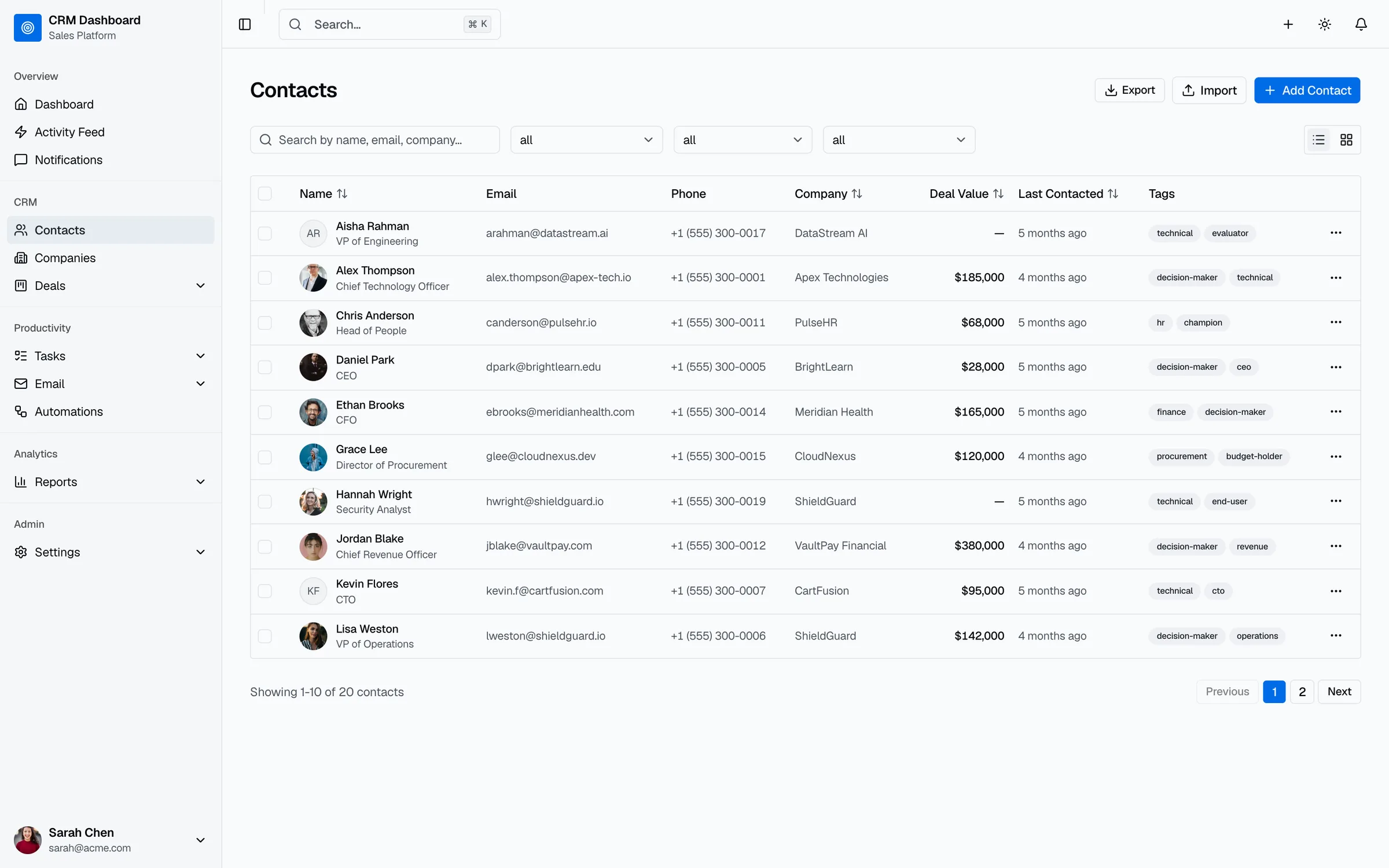
- People, including the organization link
- Organizations
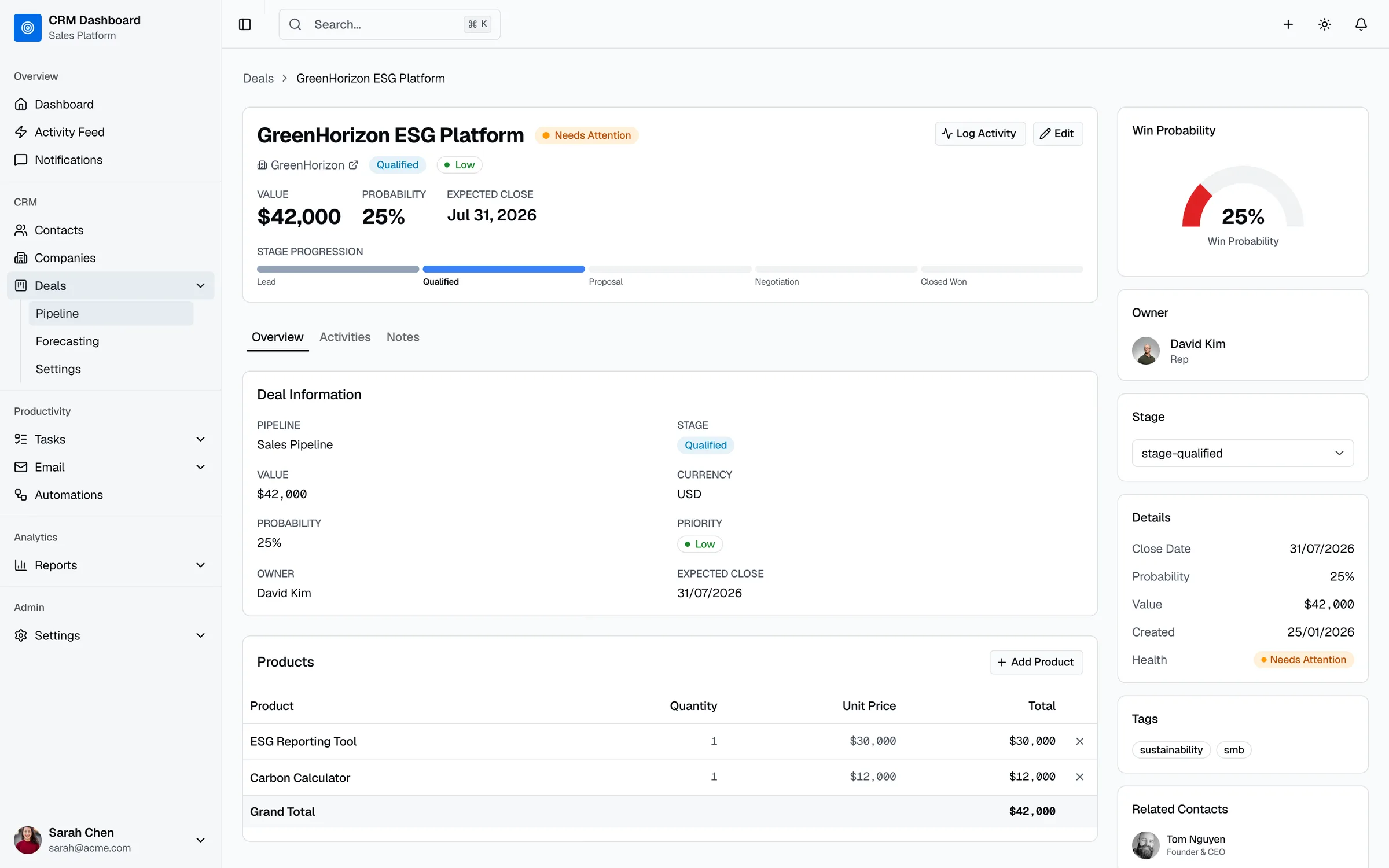
- Deals, including linked organization and contact person
- Leads, if you use them (archived, not archived, or all)
- Activities, filtered by date if you only want recent history
- Notes, as HTML or plain text
- Products, if deals carry line items
- Files, if you need attachments
A few details from Pipedrive's export help page matter here:
- Activities, notes and files linked to deals and contacts are exported separately. They aren't inside the deals file.
- Files stored in Google Drive aren't included in the global exports, and their download links only work for admin users. If your team attached Drive files to deals, plan a separate way to save them.
- Export files stay available for 28 days under Generated exports, so grab them promptly.
- Large accounts can use the API with an API token, which suits scheduled or repeatable exports.
Save a copy of every raw export somewhere safe and don't edit those originals. You'll work on duplicates.
Step 4: Clean the Data Before Import
Cleaning in a spreadsheet is slow and boring, and it's also far cheaper than cleaning inside the new CRM.
- Deduplicate people on email and organizations on domain. Those are the keys HubSpot uses to match records, so duplicates in your file become overwritten or duplicated records in HubSpot.
- Fill in or flag missing emails. Contacts without an email are harder to dedupe later, because email is the main unique identifier for contacts.
- Normalize free text into dropdown values. If "Source" in Pipedrive has 40 spellings of "Referral", collapse them before import.
- Standardize dates. HubSpot accepts several date formats (day-month-year, month-day-year or year-month-day, with slashes, hyphens or periods). Pick one and keep it consistent across all files. Use hh:mm for times, and add a time zone offset if it matters.
- Convert owners to email addresses. HubSpot accepts a user's name, email or internal value in an owner column, and says email or internal value is safer when names repeat.
- Split multi-value fields with semicolons. HubSpot expects multiple checkbox values separated by a semicolon with no spaces, and the options must already exist in HubSpot.
- Drop columns you decided not to keep and rename the rest to match your HubSpot property labels.
Step 5: Prepare HubSpot
Do this before the first import file touches the account.
Create the users and teams. Imported owner values only resolve to people who exist in HubSpot. Users assigned through an import aren't notified, so you can set owners quietly ahead of the launch.
Create custom properties. Go to Settings, Properties, pick the object and click Create property. Choose the field type that fits (single-line text, dropdown select, multiple checkboxes, date, number and so on). Header names in your import file must match a HubSpot property, default or custom, so anything missing will block the mapping. One thing to know: you can't edit a property's internal name after creation, so name it carefully.
Build the deal pipeline and stages, with the probability and closed-won and closed-lost stages your team agreed on.
Decide on association labels. If you want to tag how a contact relates to a company (decision maker, billing contact), labels need a Professional or Enterprise subscription, and the labels must exist before you import them.
Step 6: Import Into HubSpot in the Right Order
HubSpot's import tool lives under Data Management, then Data Integration, then Import data. Choose the advanced import for several objects at once, or import each object on its own. Accepted files are .csv, .xlsx and .xls, with one sheet per file and under 1,000 columns. On the paid tiers, files can be up to 512 MB and 1,048,576 rows. HubSpot's free tools have a lower cap of 20 MB per file.
Import in this order, because later objects need the earlier ones to link to:
- Companies, with the domain name as the unique identifier
- Contacts, with email as the unique identifier and the company domain to link them
- Deals, with associations to the contact and company
- Products, then line items on deals if you use them
- Activities and notes, last
Some rules from HubSpot's import help that are worth remembering:
- Pick the right import action. "Create and update" makes new records and updates existing ones. "Create new only" skips records that exist. "Update existing only" needs a unique identifier.
- Associations come from identifiers. In a single file, include a unique identifier for each record in the same row, such as email or company domain. To link one record to several others, repeat its row with a different associated identifier each time. Without identifiers, you'll create duplicates.
- Across multiple files, use a shared column (company name or domain, for example) to connect the records.
- Existing emails, meetings, notes and tasks can't be updated by import. That makes a messy first import hard to fix by re-importing, so test first.
- You have to tick the consent checkbox confirming contacts expect to hear from you and that the file isn't a purchased list. Bring your consent and opt-in fields along if you market to contacts in regions with privacy rules.
- Only some imports run at once. HubSpot allows three at the same time, and only two of those can be above 10,000 rows. A fourth import queues.
Run a test import first. Take 200 to 500 records across companies, contacts and deals, import them, and check in HubSpot: do the associations show, are owners right, do dates look correct, did the dropdowns map? Fix the mapping, delete the test records, and then run the full import. This one step prevents most "we have to redo it all" moments.
Step 7: Rebuild What Doesn't Move
This is the part people underestimate. Plan for it as a separate workstream.
Automations. Plan to rewrite them. Pipedrive's automation help doesn't describe an export for them, and HubSpot's import tool covers records, not workflow logic. For each automation in your inventory, write one line: "when X happens, do Y." Then rebuild it as a HubSpot workflow. The usual first four are lead routing, first-touch tasks, stage-change notifications and handoff of won deals. Our CRM automation guide covers the build order and which tier each needs.
Reports and dashboards. Pipedrive lets you export reports and dashboards as PDF or PNG and report tables as spreadsheets. Treat those as reference screenshots of what your managers look at. Rebuild the two or three dashboards that run the weekly pipeline meeting in HubSpot, and check their numbers against Pipedrive's during the parallel period.
Email and calendar sync. Reconnect each rep's inbox and calendar in HubSpot. Email history that was logged against records in Pipedrive may not appear unless you export and import it, so decide whether you need old email threads or whether notes and activity summaries are enough.
Integrations. Reconnect forms, billing, support, phone and any Zapier or Make workflows. Every integration needs an owner, a direction of sync and a rule for which system wins on a conflict.
Permissions. Pipedrive's permission sets and visibility groups don't map one-to-one to HubSpot's. Use the users and access export from Step 1 as a checklist and recreate the intent, not the exact settings.
If you'd rather hand this part off, outside help covers it, and our HubSpot consultant cost breakdown shows what outside help typically runs.
Step 8: Cut Over
Pick a date and tell the team in advance. A simple sequence works:
- Freeze Pipedrive the evening before: stop creating records there.
- Export the delta: anything created or changed since your main export, using Pipedrive's date filters on activities and deals.
- Import the delta into HubSpot with "Create and update" and the same unique identifiers.
- Switch routing, forms and email sync to HubSpot.
- Hold the first pipeline meeting in HubSpot. If the meeting still runs from Pipedrive or a spreadsheet, the migration isn't done.
- Keep Pipedrive read-only for two or three weeks as a fallback, then cancel after you've compared a sample of records and the key reports.
How Long It Takes
These are our estimates, not vendor figures. For a team of about 10 users, one pipeline and a few thousand records:
| Phase | Typical time |
|---|---|
| Inventory, decisions and mapping | 2 to 3 days |
| Cleaning exports | 1 to 3 days |
| HubSpot setup (users, properties, pipeline) | 1 to 2 days |
| Test and full import | 1 to 2 days |
| Rebuilding automations, reports, integrations | 1 to 2 weeks |
| Training and parallel run | 1 to 2 weeks |
Several pipelines, years of activity history, heavy custom fields or custom integrations stretch that.
Pipedrive to HubSpot Migration Checklist
- An owner is named and the success measures are written down
- The HubSpot tier includes workflows and any other features you need
- Inventory of fields, pipelines, automations, reports, integrations and users is done
- Pipedrive exports were run by a global admin and the raw files are saved
- Duplicates removed, owners converted to emails, dates standardized
- Users, custom properties and the deal pipeline exist in HubSpot
- Test import checked: associations, owners, dates, dropdowns
- Full import done in order: companies, contacts, deals, then activities and notes
- Automations, dashboards and integrations rebuilt and tested
- Cutover date set, delta imported, Pipedrive set to read-only
- First pipeline meeting held in HubSpot
Frequently Asked Questions
How do I migrate from Pipedrive to HubSpot?
Export your data from Pipedrive as XLSX or CSV (people, organizations, deals, activities, notes), clean and map the columns to HubSpot properties, create the custom properties and deal pipeline in HubSpot, then import companies, contacts and deals in that order. Rebuild automations, reports and integrations by hand.
What data can I export from Pipedrive?
A global admin can export leads, deals, organizations, people, products, activities, projects, notes and files, in XLSX or CSV (notes come as HTML or plain text). Reports and dashboards export as PDF or PNG. Files stored in Google Drive aren't included in the global exports.
Do Pipedrive automations transfer to HubSpot?
No. Automations are rebuilt as HubSpot workflows, which are available on Sales Hub Professional and Enterprise. Write down each automation's trigger and actions before you start so nothing gets forgotten.
How do I stop duplicates when importing into HubSpot?
Use unique identifiers. Email is the identifier for contacts and company domain name for companies. When linking records in a single file, include the identifier in every row, and use "Create and update" so existing records are matched instead of duplicated.
How long does a Pipedrive to HubSpot migration take?
By our estimate, a team of about 10 with one pipeline and a few thousand records needs two to four weeks end to end, including rebuilding automations and training. The data import itself often takes a day or two. More pipelines, more history or custom integrations add time.
Can I keep Pipedrive running while I move?
Yes, and it's a good idea. Keep it read-only for a couple of weeks after cutover so reps can look things up and you can compare reports. Cancel only after you've checked a sample of records and the numbers managers rely on.
Getting Help With the Move
If your account has years of history, several pipelines or a pile of automations, the rebuild is where the hours go. Our team handles HubSpot migration and implementation: field mapping, imports, workflows, dashboards and training, starting with a review of your current Pipedrive setup and a fixed-scope proposal. If you'd like to do it yourself, the steps above are what we'd follow.
Want help with your CRM rollout?
We review your current setup, then take on the parts that stall rollouts: data migration, integrations, automation and training. HubSpot implementations are fixed-scope projects, and broken syncs in HubSpot, Salesforce or Pipedrive start with a $499 audit.