Zendesk Migration: Step-by-Step Guide, Checklist and Pitfalls
Zendesk Migration: What Moves, What Breaks and How to Plan It
A Zendesk migration is mostly two different jobs wearing one name. Tickets, users and organizations are data, and data can be exported and imported. Macros, triggers, automations, views and SLA policies are logic, and in most cases you rebuild them by hand in the new system. Teams that plan for both jobs finish on time. Teams that only plan for the data find out about the second job on cutover day.
This guide works for either direction: moving into Zendesk from another help desk, or moving off Zendesk to something else. It covers what each piece of your support setup does during a move, a nine-step plan, the mistakes that cause the most rework, and a checklist you can copy. Hour counts and timelines are our estimates, and we label them that way. Facts about Zendesk's import and export behavior come from Zendesk's own documentation.
TL;DR
- Data moves, logic mostly doesn't. Tickets, users, organizations and help center articles can be exported and imported. Macros, triggers, automations, views and SLA policies are usually recreated manually.
- Zendesk has no point-and-click import for everything. Its docs say you can't migrate everything into Zendesk through the user interface. Tickets go through the Ticket Import API, articles through the Help Center API, and users and organizations through bulk import or their APIs.
- Use the import endpoint for historical tickets. Imported tickets don't fire triggers (unless closed tickets are updated later), and they don't send notifications to cc'd users, so customers don't get a flood of old emails.
- Metrics don't come across. Zendesk says ticket metrics such as first reply time and first resolution time aren't imported, and SLAs aren't supported on imported tickets. Tag imported tickets and exclude them from reports.
- Run a pilot, then a delta. Import a small batch first, check it, then do the full import and a final delta for tickets created during the move.
- Allow 3 to 8 weeks for a typical small support team (our estimate), longer with large archives, several channels or lots of automations.
Before You Start: Decide What You're Moving
Write down what lives in your current help desk. Most teams discover they use less than they thought, and a migration is the cheapest moment to drop the rest.
| Area | Examples | Usually migrates as data? |
|---|---|---|
| Tickets | Subject, requester, status, tags, comments, attachments | Yes, via export and import tools or API |
| Users and organizations | Customers, agents, company records | Yes |
| Help center | Articles, sections, categories, translations | Yes, through the Help Center API or a migration tool |
| Business rules | Macros, triggers, automations, views | No, rebuild by hand |
| SLAs and metrics | SLA policies, first reply time, resolution time | No, rebuild and restart the clock |
| Channels | Email addresses, chat widget, social, phone | No, reconnect each one |
| Integrations | CRM, billing, Slack, Jira | No, reconnect and retest |
Then answer four questions before touching any tool:
- Which direction? Into Zendesk, off Zendesk, or consolidating two Zendesk accounts. Each has different export and import limits.
- How much history do you need? Open tickets and the last 12 months are common choices. Old closed tickets can go into an archive or a read-only export instead of the live system.
- Who owns it? One person with the authority to retire macros and rewrite routing. A shared inbox owner nobody can overrule slows every decision.
- What does done mean? For example: agents work only in the new tool, customers reply to the same support address, and the weekly report matches the old one within a few percent.
What Exports From Zendesk
If you're leaving Zendesk, start here. Zendesk's documentation describes a few routes.
Account data export. An admin can export tickets, users and organizations to JSON, CSV or XML from Admin Center. Zendesk's docs say data exports aren't enabled by default and the account owner may need to ask Zendesk Customer Support to turn them on, so request it early. It's available on certain plans only, so check yours before you plan around it.
Large exports. Zendesk's own export guide warns that exports of more than 100,000 records can time out, and that API exports have rate limits, so use incremental exports for big datasets. If you have years of tickets, plan for the API route rather than one big file.
Help center content. Articles, sections and categories live in Zendesk Guide. The Help Center API lists articles and can filter and sort them, and many third-party guides note that articles aren't part of the standard account export. Plan to pull them through the API or a migration tool.
Attachments. Make sure your export route includes attachment files and not just links to them. If links point back to Zendesk, they may stop working once you cancel. Test by opening a few attachments after a sample export, with your Zendesk session logged out.
Keep your export files somewhere safe and untouched. They're your rollback if something in the new system looks wrong a month later.
What Imports Into Zendesk
If you're moving into Zendesk, the key page is Zendesk's own "How can I migrate information from another platform into Zendesk" article. Its summary:
- Tickets use the Ticket Import API.
- Users and organizations use the bulk import options or their APIs.
- Articles use the Help Center API.
- Zendesk Marketplace has third-party migration apps, Zendesk partners can help, and for large or complex migrations the docs point you to Zendesk Professional Services.
Details from the Ticket Import API reference worth knowing before you start:
- The bulk endpoint,
POST /api/v2/imports/tickets/create_many, accepts up to 100 tickets per request. - Triggers don't run on imported tickets that aren't closed, and resume if the ticket is updated after import.
- No notifications go to cc'd users for imported tickets.
- Zendesk metrics and SLAs aren't supported for imported tickets, and Zendesk recommends tagging imported tickets and excluding them from reports.
- For very large historical imports, closed tickets can be sent straight to the archive using the
archive_immediatelyoption. - Timestamps before 1970 are rounded up to 1970, and comment dates can't be in the future.
The practical lesson is to use the import endpoint for history, not the normal ticket create call. A regular create call stamps tickets with the current time and fires your triggers, which can email customers about old conversations.
The 9-Step Zendesk Migration Plan
Step 1: Audit What You Actually Use
Export a list of every macro, trigger, automation, view, custom field, tag and integration. Then sort each into keep, rewrite or retire. In most accounts a large share of macros and tags haven't been used in a year. Zendesk reporting on macro usage can help you decide, but the quicker test is to ask agents which five macros they'd miss.
Done when: you have a spreadsheet with one row per item and a decision for each.
Step 2: Choose the Destination and Check Its Limits
Check how the new tool handles imports before you commit to it. Ask four things: does it have a ticket import API or tool, does it let you set the original created date, does it suppress notifications during import, and can it hold attachments. If you're still choosing a tool, our Zendesk alternatives comparison and Freshdesk alternatives guide cover the options, and the Zendesk pricing breakdown shows what you're paying now.
Done when: the destination's import path is confirmed to support tickets, comments and attachments.
Step 3: Map Fields and Statuses
Make a mapping table. Zendesk statuses (new, open, pending, hold, solved, closed) rarely match another tool's one for one. Decide where each lands. Do the same for priorities, ticket types, custom fields and tags.
- Create custom fields and dropdown values in the destination before importing.
- Create agents and groups first, so tickets can be assigned to real people.
- Decide what happens to deleted or suspended users.
- Keep a column that maps old ticket IDs to new ones. Original ticket IDs usually change, and agents will search for them.
Done when: every source field has a destination field or a deliberate "drop."
Step 4: Switch Off Customer-Facing Automations in the Target
Before any import, disable triggers and automations in the destination that email customers or change ticket status. Even when a tool says imports are silent, turn them off anyway, then re-enable them as you rebuild.
Done when: a test import of five tickets produces no emails to real customers.
Step 5: Run a Pilot Import
Import a few hundred tickets that include the awkward cases: tickets with attachments, long threads, internal notes, merged tickets, and requesters with several email addresses. Review them in the new tool with an agent who knows the history.
Check: requester and assignee, created and solved dates, comment order, internal notes staying internal, attachments opening, and tags intact.
Done when: an agent says the sample looks right and you've fixed what was wrong.
Step 6: Import Everything Else
Import in this order: users and organizations, then tickets, then help center content (categories, then sections, then articles, so the hierarchy holds). Tag every imported ticket with something like migrated-2026 so you can filter them out of reports and find them if you need to re-run a batch.
Done when: record counts match the export, within a few records you can explain.
Step 7: Rebuild the Business Rules
This is the step that takes longer than people expect. Rebuild in this order:
- Routing and assignment. Who gets what.
- Triggers. Auto-replies, status changes, notifications.
- Macros. Start with the top 20 by use.
- Views and queues. Match how agents scan their work.
- SLA policies. Remember historical metrics won't transfer, so reports start fresh.
- Automations. Reminders, auto-close rules, follow-ups.
Where the same logic could be done in a simpler way, take the chance to simplify. One rule per outcome is easier to debug than five overlapping ones.
Done when: a set of test tickets goes through every rule path as expected.
Step 8: Reconnect Channels and Integrations
Point your support email at the new system, reconnect chat, social and phone, and reconnect your CRM, billing tool and Slack. Update the forwarding rules at your email provider, and check SPF and DKIM records so replies from the new system aren't flagged as spam.
If you run many integrations, a short audit saves surprises later. That includes webhooks, Zapier or n8n workflows, and any script calling the old system's API. Some teams find it quicker to bring in workflow automation services for this step than to rewire each connection by hand.
Done when: a customer email, a chat message and a form submission each create a ticket in the new tool and trigger the right rules.
Step 9: Cut Over, Delta Import and Monitor
Pick a cutover day, ideally midweek and outside your busiest period. On that day:
- Put the old help desk in read-only mode or stop new tickets from arriving.
- Run a delta import of tickets created or updated since your full import.
- Switch email forwarding and channels to the new system.
- Re-enable customer-facing triggers and automations.
- Keep the old account available for at least a few weeks, so agents can look things up.
Watch the first week closely: unassigned tickets, replies that bounce, macros with broken placeholders, and customers answering old ticket threads that no longer exist.
Done when: all agents work only in the new tool and the old account is read-only.
Common Zendesk Migration Mistakes
- Importing history through the normal create call. It fires triggers and stamps tickets with today's date. Use the import endpoint.
- Expecting reports to match. Metrics such as first reply time aren't imported, so historical charts won't line up with the old ones. Agree on this with managers before launch.
- Forgetting attachments. Links that point to the old system break once the account closes.
- Copying every macro. More rules in the new tool means more to maintain. Retire the ones nobody uses.
- Leaving help center redirects for later. If your help articles have been indexed in search for years, set up redirects from the old URLs, or you lose that traffic and customers land on error pages.
Who Should Do the Work
Small data volumes can go through a destination's own importer or a Marketplace migration app. Large archives, unusual mapping or repeat runs usually mean scripts on the APIs, which needs a developer. Zendesk itself points large or complex migrations to its Professional Services team and to partners, which tells you something about the effort involved. Whoever does it, ask for written documentation of every rule they rebuild.
Another Option: Own Your Support Stack
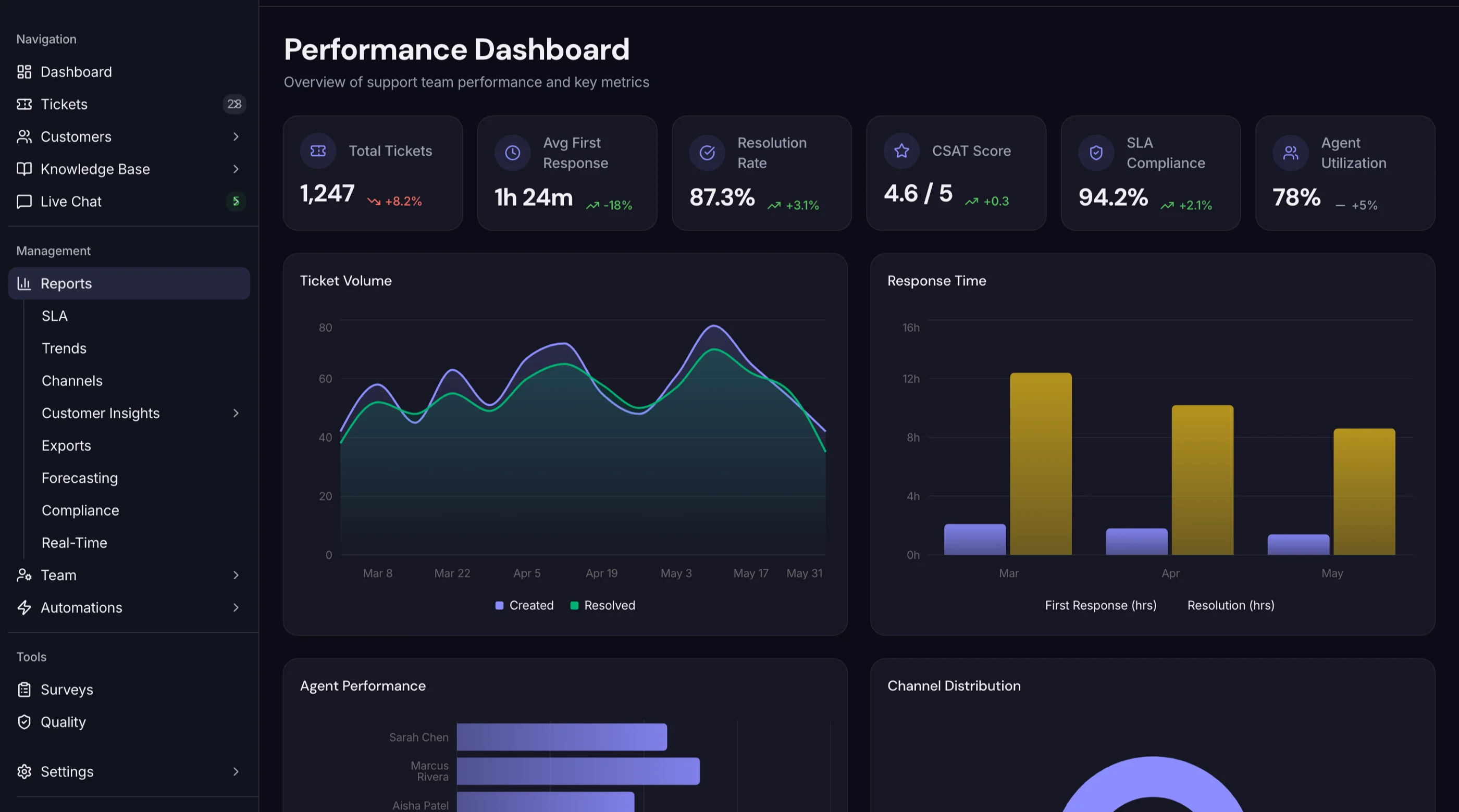
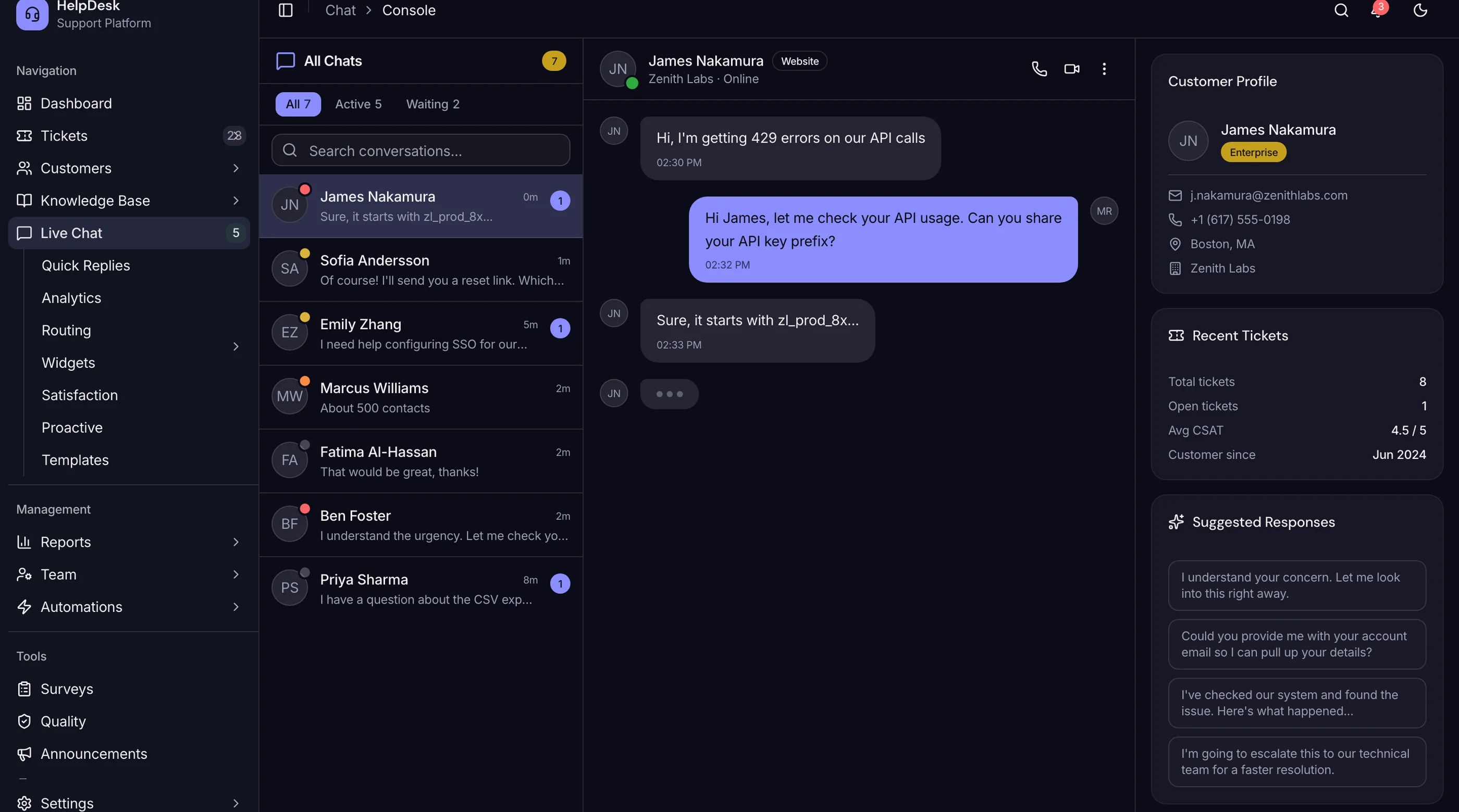
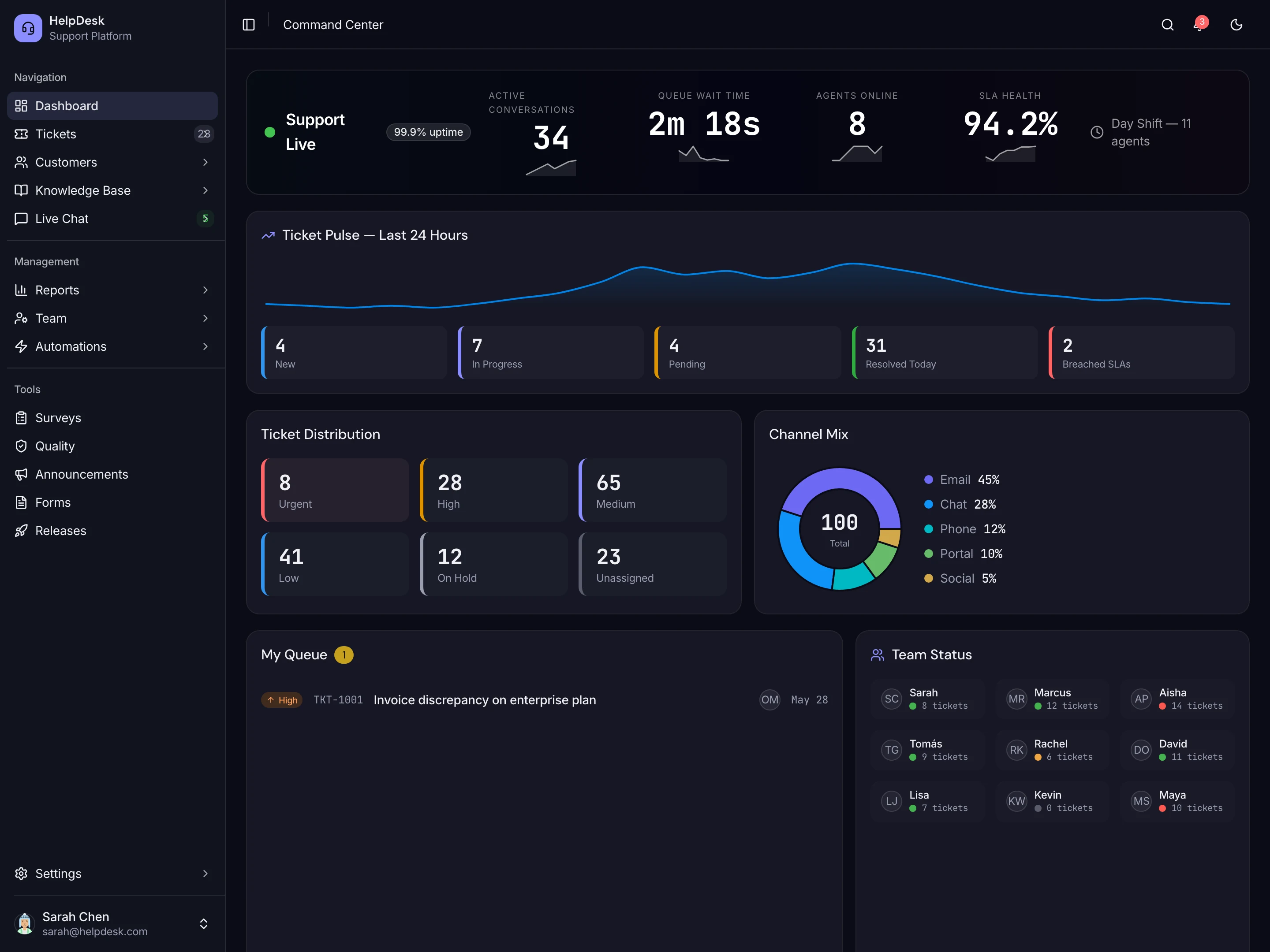
Some teams leaving Zendesk don't want another per-agent subscription. They want a help desk that lives inside their own product and data. If that's you, the Frontkit Help Desk Kit is a Next.js starter with 110 screens covering ticket management, live chat, a knowledge base, customer profiles, SLA tracking, automations with AI agent assist, CSAT surveys and QA scoring, built with Next.js 16, Tailwind CSS v4 and shadcn/ui. Pricing is $131 solo, $199 team and $349 agency.
It's a front end to build on, so you'd still connect your own backend and migrate your own data. It fits teams with developers who want to control the experience. It's the wrong choice if you want a hosted help desk working by Friday, and in that case a hosted alternative is the faster route.
Zendesk Migration Checklist
- An owner is named and has authority over rules and routing
- Direction, scope and history cutoff are decided
- Inventory of macros, triggers, automations, views, fields and integrations is done
- Destination import path confirmed for tickets, comments and attachments
- Data export enabled and tested, including attachments
- Field, status and priority mapping table is finished
- Custom fields, agents and groups exist in the destination
- Customer-facing automations are switched off during import
- Pilot import is reviewed by an agent
- Full import counts match the export
- Imported tickets are tagged and excluded from reports
- Help center content is imported, with redirects planned
- Business rules are rebuilt and tested
- Support email, chat and forms point to the new system, with SPF and DKIM checked
- Delta import is run on cutover day
- Old account stays read-only for a few weeks
Frequently Asked Questions
How long does a Zendesk migration take?
For a small support team with one email channel and a modest rule set, 3 to 8 weeks is a realistic estimate. Large ticket archives, several channels, many automations or a custom help center can double that. The data import is often the shorter part. Rebuilding rules and testing takes the rest.
Can I migrate Zendesk macros and triggers to another help desk?
Usually not automatically. Zendesk macros, triggers, automations, views and SLA policies are tied to Zendesk's own logic, so most teams rebuild them in the new tool. Some migration services say they can copy certain rules in specific cases, so ask any tool you're considering exactly which ones, and test.
How do I export all my data from Zendesk?
Admins can export tickets, users and organizations to JSON, CSV or XML from Admin Center. Zendesk's docs say data export may need to be enabled by contacting Zendesk Support. Large exports can time out above 100,000 records, so use incremental exports through the API for big accounts. Help center articles come through the Help Center API.
Will imported tickets email my customers?
Not if you use the right route. Zendesk's Ticket Import API doesn't send notifications to cc'd users, and triggers don't run on imported tickets that aren't closed. Using the standard ticket create call instead can fire triggers, so don't use it for history. Disabling customer-facing automations during import is a safe extra step.
Do ticket metrics and SLAs carry over?
No. Zendesk states that metrics such as first reply time and first resolution time aren't imported, and that metrics and SLAs aren't supported for imported tickets. Tag imported tickets so you can leave them out of reports, and expect your reporting to start fresh on cutover day.
What should I do with the old Zendesk account afterward?
Keep it available read-only for at least a few weeks, and keep your export files in storage. Agents will need to look up old conversations, and you'll want a fallback if you find mapping errors after cutover.
Final Thoughts
A good Zendesk migration is a lot of small decisions, not one big one: what to keep, how to map it, what to drop and when to switch. The teams that struggle usually skip the audit in Step 1 and then rebuild everything, including rules nobody needed.
If you'd rather hand off the mapping, scripts and testing, Frontkit Studio can scope the work. Tell us the source, the destination and how much history you have, and we'll send a fixed-scope proposal after a look at your current setup.
Sync still misbehaving?
We audit your HubSpot, Salesforce, Pipedrive or QuickBooks integration: every mapping and sync rule, duplicates on both sides, permissions, API usage and errors. You get a written fix plan in about 5 business days. From $499, credited toward the fix if you hire us.